AdGuard Home on Unraid
AdGuard Home is a network-wide DNS blocker for ads, trackers, and unwanted domains. Instead of installing an ad blocker on every device, your devices use AdGuard Home as their DNS server.
This guide shows the Unraid Community Apps setup I used, with AdGuard Home running from the official adguard/adguardhome Docker image.
What this guide assumes
- You already have Docker enabled on Unraid.
- You already have the Community Apps plugin installed.
- Your Unraid server is on your main LAN.
- You want AdGuard Home to have its own fixed LAN IP.
Why run AdGuard Home?
AdGuard Home is useful when you want simple network-wide filtering without managing browser extensions on every device.
It can help with:
- Blocking ads and tracking domains at the DNS level
- Seeing DNS queries from devices on your network
- Creating blocklists, allowlists, and client-specific rules
- Using custom upstream DNS providers
DNS is important
If AdGuard Home is down and your devices only use AdGuard Home for DNS, internet browsing may stop working until DNS is restored. Keep this in mind before making it your whole network's DNS server.
Screenshot references
Setup summary
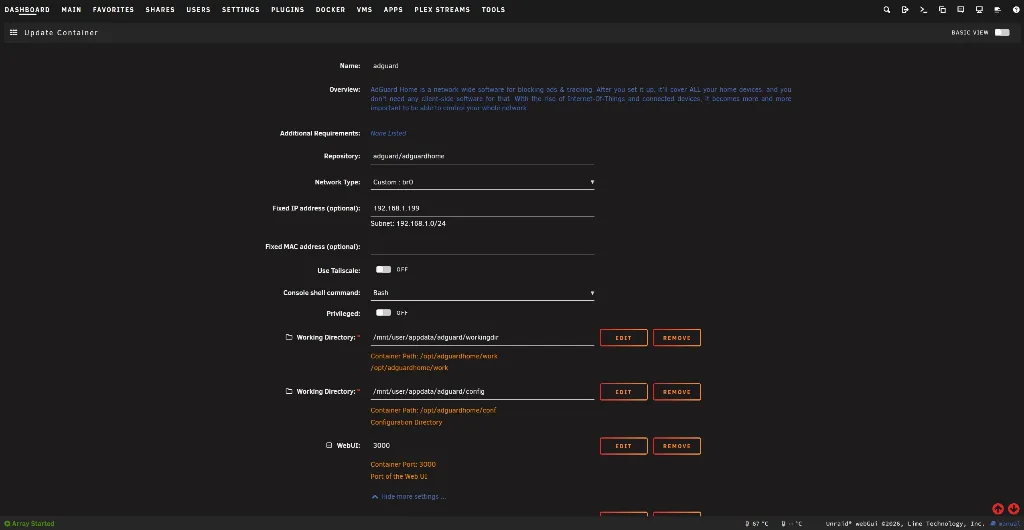
This is the general setup shown in the Unraid template screenshot.
| Setting | Value used | Notes |
|---|---|---|
| Repository | adguard/adguardhome |
Official AdGuard Home Docker image |
| Network type | Custom: br0 |
Gives the container its own LAN IP |
| Fixed IP address | 192.168.1.199 |
Replace with an unused IP on your LAN |
| WebUI port | 3000 |
Used to access the AdGuard Home web UI |
| DNS TCP port | 53 |
Required for normal DNS |
| DNS UDP port | 53 |
Required for normal DNS |
| Privileged | Off |
Not needed for this basic setup |
| Tailscale | Off |
Not used in this setup |
Reserve the IP
After choosing a fixed IP for AdGuard Home, reserve that same IP in your router or DHCP server if possible. This helps avoid another device accidentally taking it later.
Install from Unraid Community Apps
- Open the Unraid web UI.
- Go to Apps.
- Search for AdGuard Home.
- Choose the template using the
adguard/adguardhomerepository. - Click Install.
Unraid Community Apps is the easiest way to deploy this on Unraid because it gives you a form-based Docker template instead of making you write the full docker run command yourself.
Configure the Unraid template
Use the following settings as a starting point.
Basic settings
| Field | Recommended value |
|---|---|
| Name | adguard |
| Repository | adguard/adguardhome |
| Network Type | Custom: br0 |
| Fixed IP Address | Your chosen AdGuard IP, for example 192.168.1.199 |
| Console shell command | Bash |
| Privileged | Off |
Appdata paths
The official Docker image uses two persistent directories: one for working data and one for configuration.
| Host path | Container path | Purpose |
|---|---|---|
/mnt/user/appdata/adguard/workingdir |
/opt/adguardhome/work |
Runtime data |
/mnt/user/appdata/adguard/config |
/opt/adguardhome/conf |
Main configuration |
Why the paths matter
These folders keep your AdGuard Home configuration persistent. If the container is updated or recreated, your settings should remain intact as long as these appdata paths are preserved.
Ports
For this basic LAN setup, the important ports are:
| Port | Protocol | Purpose |
|---|---|---|
3000 |
TCP | Web interface |
53 |
TCP | DNS |
53 |
UDP | DNS |
The official Docker documentation lists additional ports for DHCP, HTTPS, DNS-over-TLS, DNS-over-QUIC, and DNSCrypt. You do not need to expose those unless you plan to use those features.
First-time AdGuard Home setup
After the container starts, open:
http://192.168.1.199:3000
Replace 192.168.1.199 with your AdGuard Home IP.
During the first setup wizard:
- Click Get Started.
- Set the Admin Web Interface to listen on port
3000. - Set the DNS Server to listen on port
53. - Create your admin username and password.
- Finish the setup and sign in.
Do not forget the port
In this setup, the web UI is on port 3000, so use http://ADGUARD-IP:3000.
Configure upstream DNS
Go to:
Settings > DNS settings
AdGuard Home forwards allowed DNS queries to upstream DNS servers. You can use regular DNS, DNS-over-TLS, or DNS-over-HTTPS upstreams.
Example upstreams:
https://dns.adguard-dns.com/dns-query
https://dns.quad9.net/dns-query
https://cloudflare-dns.com/dns-query
You do not need to use all of these. Pick the provider you trust and keep the list simple.
Start simple
Start with one or two reliable upstream providers. More upstreams does not always mean better DNS performance.
Point your network to AdGuard Home
The easiest whole-network method is to set AdGuard Home as the DNS server in your router's DHCP settings.
On your router:
- Open your router admin page.
- Find the LAN, DHCP, or DNS settings.
- Set the DNS server handed out to clients as:
192.168.1.199
- Save the change.
- Renew DHCP on your devices, reconnect Wi-Fi, or reboot the devices.
Best place to set DNS
For most home networks, set AdGuard Home as the DNS server handed out by DHCP. This makes individual devices use AdGuard directly.
Avoid DNS loops
Be careful setting your router's own upstream DNS to AdGuard Home if AdGuard Home also depends on the router for DNS. For a basic setup, keep the router's WAN DNS pointed to a public resolver and hand out AdGuard Home through DHCP.
DNS blocklists
Go to:
Filters > DNS blocklists
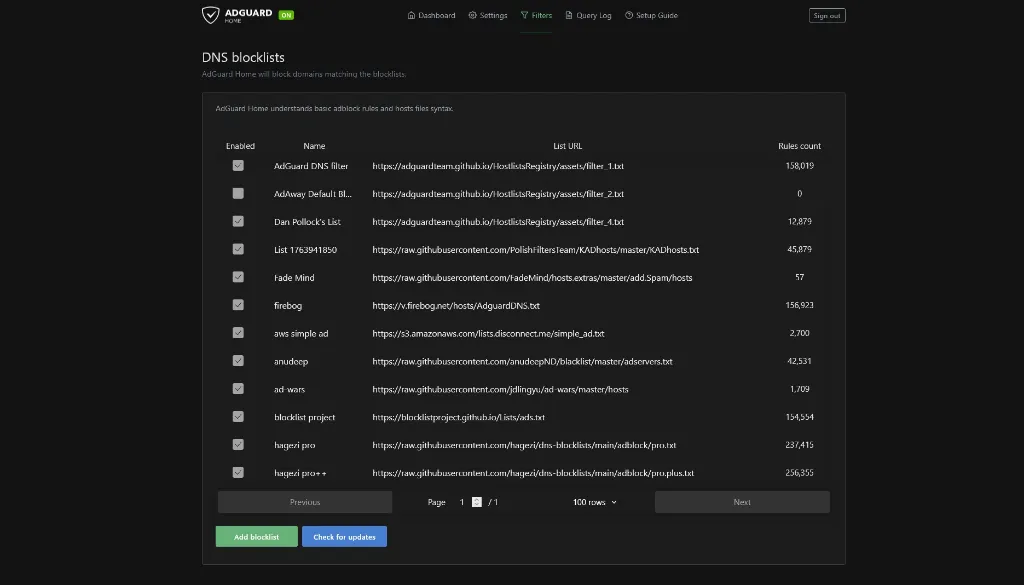
The important thing is to avoid adding too many lists too quickly. More blocklists can increase false positives. The lists below works well for my needs, YMMV.
Blocklists shown in this setup
| List | Status |
|---|---|
| AdGuard DNS filter | Enabled |
| AdAway Default Blocklist | Disabled in screenshot |
| Dan Pollock's List | Enabled |
| KADhosts | Enabled |
| Fade Mind | Enabled |
| firebog | Enabled |
| disconnect.me simple ad | Enabled |
| anudeep adservers | Enabled |
| ad-wars | Enabled |
| blocklist project ads | Enabled |
| HaGeZi Pro | Enabled |
| HaGeZi Pro++ | Enabled |
Recommended approach
Start with the default AdGuard DNS filter and one larger trusted list, such as HaGeZi Pro. Add more lists only if you know what they are doing or you are trying to block something specific.
To update lists manually:
- Go to Filters > DNS blocklists.
- Click Check for updates.
Test that it works
From a Windows PC, open PowerShell and run:
Resolve-DnsName google.com -Server 192.168.1.199
Resolve-DnsName doubleclick.net -Server 192.168.1.199
You can also use nslookup:
nslookup google.com 192.168.1.199
nslookup doubleclick.net 192.168.1.199
Then check:
Query Log
You should see DNS requests showing up in AdGuard Home.
Blocked results may vary
Depending on your AdGuard Home settings, blocked domains may return 0.0.0.0, NXDOMAIN, or another blocking response.
Common troubleshooting
The web UI does not load
Check:
- The container is running in Unraid.
- You are using the correct IP and port:
http://192.168.1.199:3000. (replace with your IP) - Try accessing via
http://192.168.1.199/login.html(replace with your IP) - The container is on
Custom: br0. - The fixed IP is not already used by another device.
Devices are not being filtered
Check:
- Your router DHCP settings are handing out AdGuard Home as DNS.
- The client received the new DNS server after reconnecting or renewing DHCP.
- The device is not using browser-based private DNS or DNS-over-HTTPS.
- The query appears in Query Log.
Only the router shows in the query log
This usually means your clients are sending DNS to the router, and the router is forwarding DNS to AdGuard Home.
If you want to see each client separately, configure DHCP to hand out the AdGuard Home IP directly to clients.
Some apps or websites break
Go to:
Query Log
Find the blocked domain and allow it if needed.
You can allowlist a domain from the query log or by going to:
Filters > DNS allowlists
Do not disable everything immediately
If a site breaks, allowlist only the domain that is causing the issue. Disabling all filtering defeats the purpose of running AdGuard Home.
Backups
Make sure your normal Unraid appdata backup includes:
/mnt/user/appdata/adguard/workingdir
/mnt/user/appdata/adguard/config
These folders contain the data and configuration that make your AdGuard Home install recoverable.
Updating AdGuard Home
In Unraid:
- Go to Docker.
- Click Check for Updates.
- Update the AdGuard Home container if an update is available.
This follows the same idea as the official Docker update process: pull the newer image and recreate the container while keeping the persistent appdata paths.